
RSVPing for an event
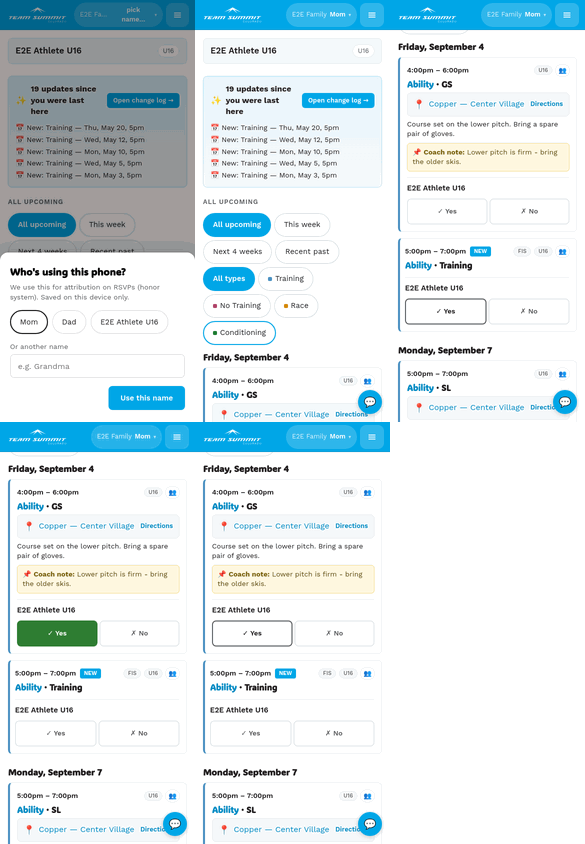
Every upcoming event shows Yes and No buttons for each athlete in your family who’s in one of the event’s groups. Tap to set the answer.
Two exceptions: No Training days ask for no answer (there’s nothing to attend), and events whose RSVP deadline has passed show the buttons greyed out.
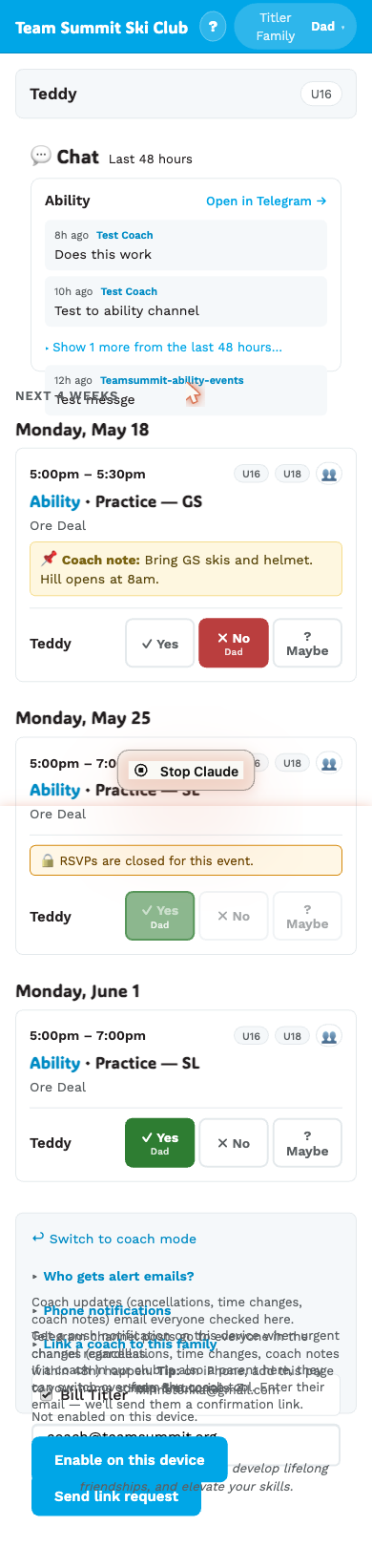
How it works
- Yes — your athlete is coming.
- No — they’re not coming.
There are only two answers, on purpose. A “maybe” doesn’t tell a coach how many pairs of skis to expect, so if you genuinely don’t know yet, leave it blank. No response is an honest answer, and the coach can chase it. You can change your answer any time before the RSVP deadline.
The button you tap turns its color (green/red) and stays active. Tap a different button to change your mind. Tap the same button again to clear the answer back to ”?” — useful if you tapped by accident, or if you answered and then genuinely stopped knowing.
Who picked it shows
When you RSVP, the page asks who’s answering (the persona — see Picking who’s responding). Whoever you pick shows on the button so the coach knows who hit yes/no.
RSVPs sync immediately
The button flips colours as soon as you tap. The save happens in the background. If your phone is offline, your tap is remembered locally and uploads when you’re back online — a bar at the top of the page shows how many changes are waiting.
If the server refuses the tap — say RSVPs have closed — it isn’t queued. The button goes back to what it was and tells you why.
You can change your mind
RSVPs can be edited up to the event’s deadline (usually right up until the event starts). If the coach has set an earlier deadline, the buttons go gray with a ”🔒 RSVPs closed” message — see Locked-out RSVPs.
Once an event has actually happened — even if the deadline never “officially” closed — RSVPs are locked. Your past response stays visible to the coach, but you can’t change it after the fact. We’re planning an attendance-tracking feature for the future; for now, contact the coach if there’s a correction to make.
If a session isn’t aimed at your athlete
Sometimes you’ll see a card with a note like “This session is for Academy/Full-Time and PG. Suzy’s group isn’t listed — check with a coach first.”
You can still RSVP. If you tap Yes, you’ll get a confirmation asking you to check with a coach before attending, and the note turns amber and stays put as a reminder.
Nothing is blocked, and nothing is hidden from you. There are always special cases, and a coach who says yes in person shouldn’t be second-guessed by the app. See Who a session is for.
Reminders if you forget
If the coach set an RSVP deadline and you haven’t answered yet, we’ll nudge you on your phone with a push notification 24 hours before the deadline and again 1 hour before. Once you respond, the nudges stop — no more buzzes for that event.
You only get the nudges if you have phone push enabled (see Enable phone push). If you haven’t turned push on, you’ll still see the deadline on the event card and can RSVP whenever you visit your family page.
Multiple athletes
If you have more than one athlete in your family, each one gets their own Yes/No row on the event card. You can have different answers for different kids on the same event.
What the coach sees
Your RSVP goes into the coach’s roster for that event. They’ll see:
- Counts at a glance:
9 yes · 2 no · 3 ?, split out per group when the event covers more than one (e.g.U16 6/8 · FIS 3/4) - The full list with names, family, and who answered.
The coach can override your answer (e.g. if a kid shows up unexpectedly, they’ll flip to Y on their end). That’s fine — they’re not erasing your opinion, they’re recording what actually happened.