
Reading your family page
Your family page is the same on phone and desktop, just laid out differently. From top to bottom:
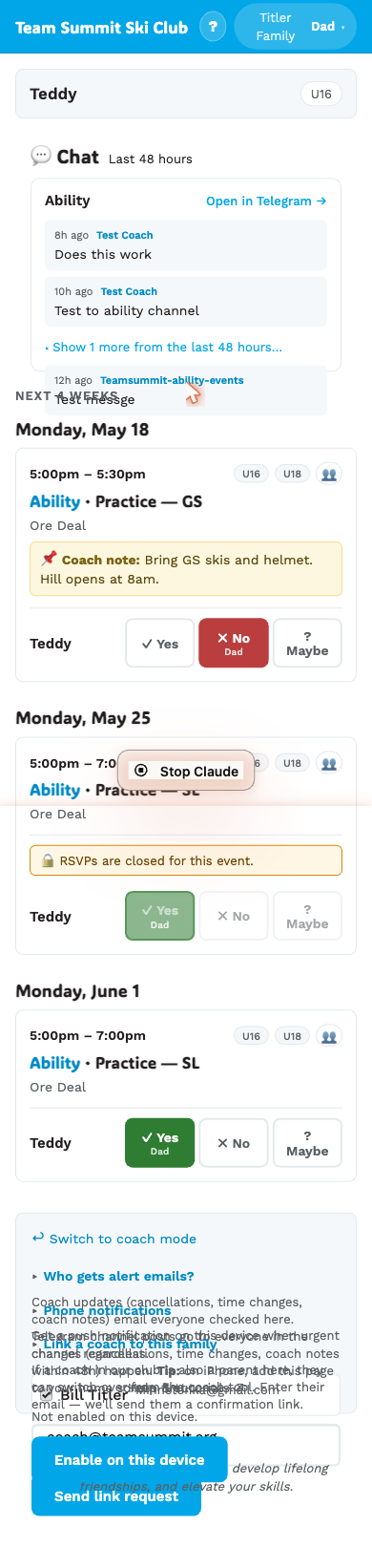
The header (top bar)
A cyan strip pinned to the top of the page. On the left: the Team Summit logo (tap to return to the top of your page). On the right, up to three buttons:
- 📬 N — only appears when you have unread messages from coaches. Tap to jump to the messages card.
- Your family name + persona button (▾) — tap the button to pick which family member is responding to RSVPs. See Picking who’s responding.
- ≡ Settings — opens the Settings sheet (see below).
Messages from coaches
When a coach has sent your family a message — race-day reminders, “don’t forget your speed suit” kinds of things — the message card shows up at the very top of the page, above your athletes. The 📬 N indicator in the top bar matches the unread count.
Once you’ve marked the message as read, the card relaxes back down to its normal position below your athletes, so old messages don’t crowd today’s info.
Athletes
A small pill list near the top showing each of your athletes’ names and their group. Read-only — if anything’s wrong (wrong group, wrong spelling), ask your coach.
”What’s changed” banner
When something new has happened since you were last on the page, a pale blue banner appears with a quick summary:
✨ 2 updates since you were last here ⏰ Time change: Training (GS) — now Mon, 6pm ⚠ Cancelled: Race (SL) — SatThe full list lives in the change log sheet. The banner shows what changed since your last visit, so it clears the next time you open the page — and it only appears at all if that visit was within the last 7 days after the changes.
Chat (if your group’s coach posts in Telegram)
A card per Telegram channel your athletes are on. Shows the last few admin posts. See The chat panel.
Upcoming events
Grouped by day. Each event card shows:
- Time — or All day for something that isn’t tied to a time slot
- What kind of session it is — “GS”, “SL”, “Conditioning”. A race reads like “FIS W SL x2”: the race series, who’s racing, the discipline, and how many races that day. (“SL x2” is two slaloms, not two runs.) If your coach typed their own title, you see that instead.
- The group pills — which cohort the session is for, e.g.
U16. If you have two children in different groups, this is how you tell their sessions apart. - Where — the resort and the spot within it, “Copper — Center Village”. Tap it for directions; see Getting there.
- Coach note (📌) if there is one
- Yes / No buttons per athlete in your family — see RSVPing
- “Out sick” / “Running late” quick-message buttons
Each card has a coloured stripe down its left edge showing what kind of session it is — training, race, conditioning, or a No Training day. The type buttons in the filter row carry the same colours, so they double as the key. Your coaches see the identical coding in their own views.
Cancelled events stay visible with a CANCELLED label.
No Training days are events too. Rather than leaving a blank square that makes you wonder whether something was missed, coaches schedule the day off. They show as All day — it’s a statement about the whole day, not something at a particular hour — and ask for no RSVP, because there’s nothing to come to.
In a calendar app you’ve subscribed to, they appear as a banner across the top of the day.
Some cards carry a short note saying which groups a session is aimed at. See Who a session is for.
Showing more or less
A row of buttons sits above the list:
| Button | Shows |
|---|---|
| All upcoming | Everything on the calendar from today forward. This is what you get by default. |
| This week | Just the next seven days. |
| Next 4 weeks | The next month. |
| Recent past | The last couple of weeks, for checking what you missed. |
If you have more than one athlete, there’s a button per athlete too, so you can look at one kid’s schedule on its own. And if the list has several kinds of event in it, you can narrow to just races, just training, and so on.
The buttons stack — pick an athlete and a range together. Tap a button a second time to switch it back off.
The page shows the whole season by default, so a race in February is there in November without any tapping.
Past events
Below the upcoming list there’s a Past events (last 14 days) section, collapsed by default. Tap it, then tap Show past events to load them. Past entries are read-only — no RSVP buttons, no quick-messages.
Settings (the ≡ button in the top bar)
Tapping ≡ in the top bar opens a slide-up sheet with everything you set once and rarely change:
- Phone notifications — enable push on this device. See Enable phone push.
- Who gets alert emails? — opt each parent contact in or out of urgent change emails. See Who gets the daily email.
- Link a coach to this family — for coaches who are also parents in the program.
- Account → Switch to another family — if you’ve landed on the wrong family page (or a coach is also a parent on a different team), this gets you back to the family picker.
- Account → Switch to coach mode — only appears if you have a coach session active. Jumps to the coach tool.
- Help & tutorials ↗ — opens this site.
Tap ✕ in the sheet header to close it (or press Esc on a keyboard).